How It Works
How to Integrate
Setting Up the Retell AI + Microsoft Dynamics 365 Integration
Step 1
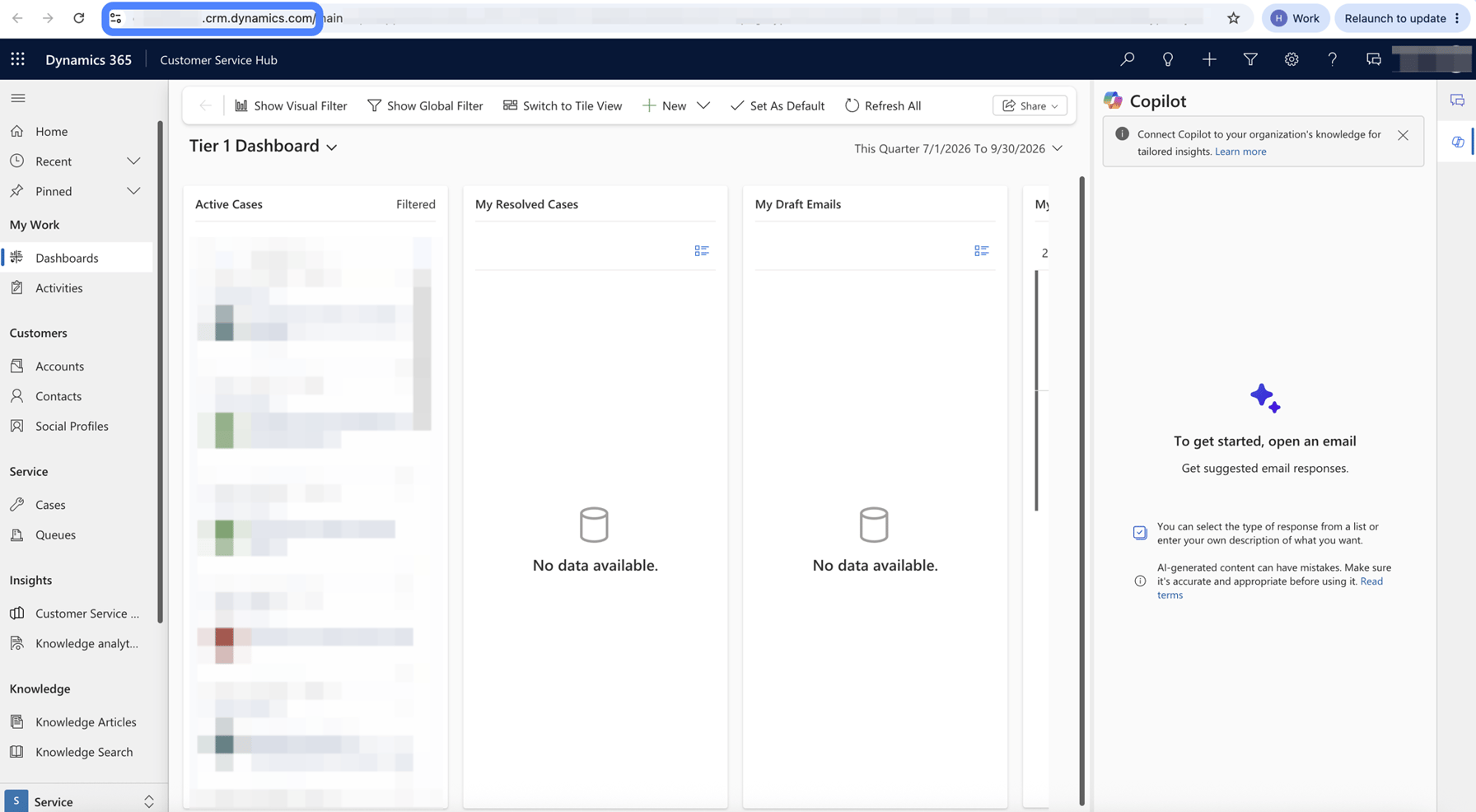
Copy your Dynamics 365 environment URL from your browser's address bar.
Step 2
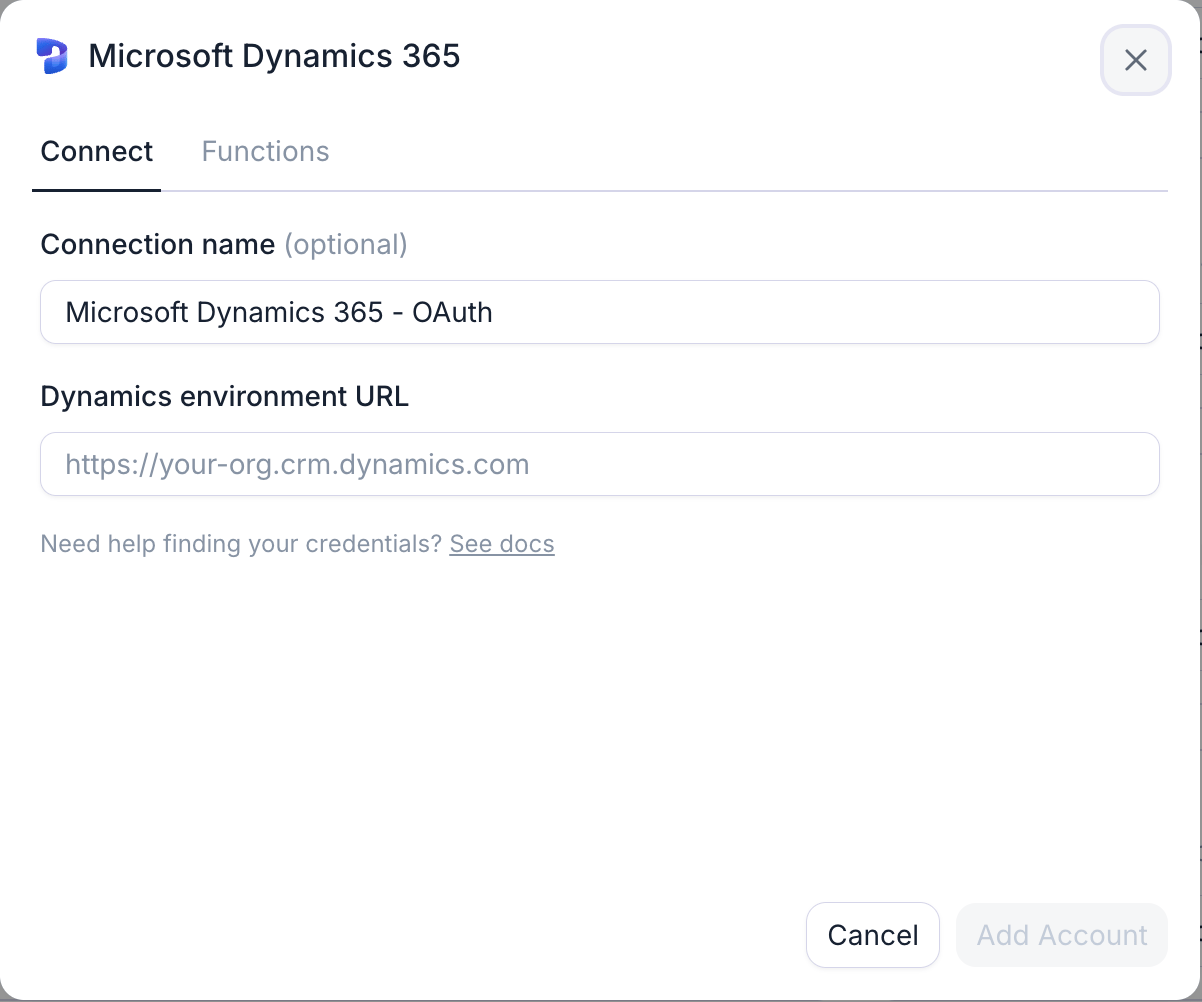
In Retell, open Integrations, find Microsoft Dynamics 365, and click Connect.
Step 3
Paste the environment URL and name the connection.
Step 4
Sign in with a Microsoft account that has access to your environment.
Step 5
Retell verifies the connection, then it appears under Connected.
Example Workflow
Inbound call → look up Contact by phone in Dynamics 365 → agent greets by name → after the call, analysis results write back to the Contact and a Phone Call activity is logged
Contact sync keeps Retell's contact list aligned with Dynamics 365 — see the Microsoft Dynamics 365 contact sync docs. For the full list of agent actions, see the Microsoft Dynamics 365 functions docs.

Connect Microsoft Dynamics 365 to Retell
Sync Dynamics 365 contacts into every call, and write the outcome back
This is a native Retell integration, built and maintained directly by Retell rather than a third-party or Zapier-style connector. Connect Microsoft Dynamics 365 to Retell so your voice agent opens each call already knowing the caller. Contacts sync automatically ahead of time, and agent functions can look up or update Contacts, Tasks, and Notes live during the call; afterward, analysis results write back to the Contact record with call history logged as Phone Call activities.

viaSocket
Retell Integration
The Retell AI × viaSocket integration lets you trigger AI-powered calls from your workflows and push results into your tools in real time. Trigger from any app — CRM, forms, sheets, webhooks — run a Retell call, pass the phone number, agent and script dynamically, and capture the outcome.

WhatsApp
Unofficial Connector
Connect WhatsApp to Retell through an automation platform so the conversation continues on the channel your customer prefers. Send confirmations, reminders and follow-ups triggered by what happened on the call.

Intercom
Unofficial Connector
Connect Intercom to Retell through an automation platform so phone conversations land alongside chat. Create or update conversations, log call outcomes against the contact, and keep one support history across channels.

Fillout
Unofficial Connector
Connect Fillout to Retell through an automation platform so new submissions get a call immediately. Pass form answers to the agent as dynamic variables so the conversation starts already informed.

DAT
Unofficial Connector
Connect DAT to Retell with a custom function against the DAT API, so an AI agent can pull vehicle valuation or estimate data into a call and record what the customer decided.

Advoware
Unofficial Connector
Connect advoware to Retell with a custom function against your firm's advoware API or middleware, so an AI agent can take first-contact calls, capture matter details, and pass them into the case file.

DATEV
Unofficial Connector
Connect DATEV to Retell with a custom function calling your practice's DATEV interface, so an agent can answer routine client questions and log call outcomes without pulling a bookkeeper off other work.

Webflow
Unofficial Connector
Connect Webflow to Retell through an automation platform so a form submission on your site becomes a phone call in under a minute. Speed to lead is the whole point — call while the visitor is still on the page.

Shopify
Unofficial Connector
Connect Shopify to Retell through an automation platform so order events can trigger a call. Confirm high-value orders, chase abandoned checkouts, and handle delivery questions without a human dialing.

Telnyx
Retell Integration
Connect Telnyx to Retell with elastic SIP trunking so your voice agents run on your own Telnyx numbers and rates. Create the trunk, point FQDN routing at Retell, set outbound auth, and import the numbers you want an agent on.

Nice
Unofficial Connector
Bridge NICE CXone to Retell using SIP so an AI agent can take calls your IVR would otherwise queue. Set up as a custom telephony connection; trunk provisioning happens on the NICE side.

Talkdesk
Unofficial Connector
Route calls from Talkdesk to a Retell voice agent using SIP trunking, so routine contacts are handled automatically while Talkdesk remains your contact center platform. Set up as a custom telephony connection — there is no Talkdesk-specific app.

Livevox
Unofficial Connector
Connect LiveVox to Retell over SIP trunking so AI agents can take part of your call volume. Configured as a custom telephony connection, with trunk setup handled in the LiveVox platform.

Five9
Retell Integration
Connect Five9 to Retell over a pre-built SIP trunk so calls from your existing IVR reach an AI agent instead of a queue. Import your Five9 number, add a ThirdPartyTransfer node, and route the traffic you want automated without rebuilding your contact center.
.avif)
Jane App
Unofficial Connector
Connect Retell to Jane App through a custom API integration so your AI voice agent can answer calls and book patient appointments around the clock. Check practitioner availability, book, and confirm without a human picking up.
.avif)
Dentrix
Unofficial Connector
Connect Dentrix to Retell with a custom function that calls the Dentrix API or your practice middleware, so an AI receptionist can check the schedule, book, and take messages when the front desk is busy or closed.
.avif)
OpenDental
Unofficial Connector
Connect Open Dental to Retell with a custom function against the Open Dental API. Your AI voice agent can check availability, book patients, confirm upcoming visits and take messages without a human answering the phone.

Epic
Unofficial Connector
Epic has no off-the-shelf Retell connector. Connect it with a custom function that calls your organization's Epic API layer — typically FHIR endpoints exposed through your integration team — so an agent can look up an appointment or patient record mid-call inside your existing governance.
.avif)
ChiroTouch
Unofficial Connector
Connect ChiroTouch to Retell through a custom API integration so your AI voice agent can answer calls, check the schedule, and book patient appointments around the clock — including the hours your front desk is closed.
.avif)
aCOM Health
Unofficial Connector
Connect aCOM Health to Retell with a custom function that calls your practice API, so an AI agent can handle appointment calls, confirmations and reminders without adding front-desk headcount.

eClinical
Unofficial Connector
Connect eClinicalWorks to Retell with a custom function calling your eCW API or interface engine, so a voice agent can answer scheduling and pre-visit questions using live patient data under your existing controls.

Cal.com
Retell Integration
This is a native Retell integration, built and maintained directly by Retell rather than a third-party or Zapier-style connector. Connect Cal.com to Retell so callers can book, move or cancel an appointment during the conversation. The agent checks live availability, offers real slots, and confirms the change before hanging up. Cal.com sends the confirmation email itself.

Vonage
Retell Integration
Connect Vonage to Retell using SIP trunking so a voice agent can answer and place calls on numbers in your Vonage account. Configure termination and origination, add credentials, and import the numbers you want covered.

Smartsheets
Unofficial Connector
Connect Smartsheet to Retell through an automation platform so calls read from and write to the sheets your operations already run on. Check task status, update project information, and log outcomes automatically.

AmazonConnect
Unofficial Connector
Route calls from Amazon Connect to a Retell voice agent using SIP, so an AI agent handles the interactions you want automated while Connect stays your contact center. Useful for deflecting routine calls without re-platforming.

Zendesk
Retell Integration
This is a native Retell integration, built and maintained directly by Retell rather than a third-party or Zapier-style connector. Connect Zendesk to Retell so your agent identifies the caller, pulls their open tickets before it speaks, and files or updates a ticket without anyone touching the keyboard. Add comments, private notes and call logs to the ticket timeline automatically after every call.

Ring Central
Unofficial Connector
Connect RingCentral to Retell over SIP so an AI agent can answer calls on your existing business numbers, or automate outbound campaigns. Alternatively, use Zapier to trigger Retell calls from RingCentral events without touching telephony configuration.

Supabase
Unofficial Connector
Connect Supabase to Retell with a custom function pointed at your Supabase REST endpoint. The agent can look a customer up, read their status, and write results during the conversation — no automation platform in between.

Azure
Unofficial Connector
Connect Azure to Retell with a custom function that calls your own Azure-hosted APIs or Functions. Fetch cloud resources, look up analytics, or run internal logic while the agent is still on the phone with the caller.

Jotform
Unofficial Connector
Connect Jotform to Retell through an automation platform so a form response triggers a call within seconds. Pass the submitted answers into the agent as context, and write the call result back to your records.

Freshdesk
Unofficial Connector
Connect Freshdesk to Retell through an automation platform so every call produces a ticket. Log customer queries, retrieve ticket status, and update cases without an agent writing anything down.

Monday.com
Unofficial Connector
Connect Monday.com to Retell through an automation platform so board data reaches the agent and call outcomes reach the board. Update item status, retrieve project notes, and keep the team's view current without manual entry.

Clickup
Unofficial Connector
Connect ClickUp to Retell through an automation platform so agents can surface task information during a call and push updates after it. Assign work, move statuses, and log call context without leaving the conversation.

Asana
Unofficial Connector
Connect Asana to Retell through an automation platform so calls create and update work automatically. Check task status before a call, assign new tasks from what the caller says, and update project details without anyone typing a note afterwards.

slack
Unofficial Connector
Connect Slack to Retell through an automation platform so your team sees what happened on a call without opening the dashboard. Post qualified leads to the sales channel, escalations to support, and a summary after every call.

Docusign
Unofficial Connector
Connect Docusign to Retell through an automation platform so voice fits into the signing process. Call to chase an unsigned envelope, confirm a completed signature, or answer questions before a document goes out.
.avif)
Calendly
Retell Integration
This is a native Retell integration, built and maintained directly by Retell rather than a third-party or Zapier-style connector. Connect Calendly to Retell so your agent can look up a caller's scheduled event, offer open slots from your real availability, book them in, and cancel when plans change, all inside the call. Booking requires a paid Calendly plan; checking availability and canceling work on any plan. The connection is scoped to one Calendly user's event types, so connect a token per teammate if you need to book across multiple people. Calendly handles the confirmation email itself.

ServiceTitan
Unofficial Connector
Connect ServiceTitan to Retell through an automation platform so calls turn into scheduled work. Update job orders, retrieve customer history, and book appointments from the conversation instead of a callback queue.
-Logo.wine.svg)
Xero
Unofficial Connector
Connect Xero to Retell through an automation platform so your finance workflows can pick up the phone. Trigger calls from overdue invoices, confirm balances, and log the outcome back against the contact.

Stripe
Unofficial Connector
Connect Stripe to Retell through an automation platform so calls about payments happen with real data. Trigger calls on failed payments, check transaction status, and log the outcome against the customer.

Workable
Unofficial Connector
Connect Workable to Retell through an automation platform so first-round screening happens automatically. Call new applicants, ask your screening questions, and write the outcome and notes back to the candidate record.

Airtable
Unofficial Connector
Connect Airtable to Retell through an automation platform to look records up mid-call and write outcomes straight back. Useful when Airtable is the operational database behind a booking, an application, or a support queue.

Keragon
Retell Integration
Keragon is a healthcare automation platform with a native Retell connector — the practical route for clinics that need to reach an EHR or practice management system without building and maintaining a custom integration themselves. Connect once in Keragon and route data between Retell and your clinical stack.

n8n
Retell Integration
Connect Retell to n8n to run call automations on infrastructure you control. Trigger calls, fetch results and chain them into your own services, with the option to self-host — the usual choice when data residency or private networking rules out a hosted automation platform.

Keap
Unofficial Connector
Connect Keap to Retell through an automation platform so contact records and follow-up sequences stay current. Retrieve client information before the call, and schedule the follow-up automatically after it.

Salesforce
Retell Integration
This is a native Retell integration, built and maintained directly by Retell rather than a third-party or Zapier-style connector. Connect Salesforce to Retell so your voice agent opens each call already knowing the caller. Look up Contacts, Leads, Accounts, Opportunities, Cases and custom objects before the agent speaks, then write dispositions, call summaries, Tasks and Notes straight back to the record when the call ends.

Make
Retell Integration
Connect Retell to Make and orchestrate calls inside a visual scenario builder. Branch on call outcomes, loop over lists for outbound campaigns, and route results into any of Make's connected apps — useful when the logic is more than a single trigger and action.

Microsoft Teams
Unofficial Connector
Connect Microsoft Teams to Retell through an automation platform so call outcomes reach the channels your team already works in. Send messages, notify owners, and update status from what happened on the call.

Google Workspace
Retell Integration
This is a native Retell integration, built directly into your dashboard rather than a third-party or Zapier-style connector. Connect Google Workspace to Retell so your agent answers from documents your team already maintains. Point it at the Docs, Sheets, or files you choose, and Retell keeps the knowledge base current automatically as they change.

Proculy
Unofficial Connector
Connect Proculy to Retell with a custom function so an agent can check inventory levels, confirm orders and update records during a call, using live data rather than a stale export.

Quickbooks
Unofficial Connector
Connect QuickBooks to Retell through an automation platform so accounts conversations run on live figures. Trigger collection calls on overdue invoices, check invoice status, and record what the customer committed to.

Dealmaker
Unofficial Connector
Connect DealMaker to Retell with a custom function against its API, so an AI agent can call investors or applicants, confirm details, and update deal status without manual follow-up.

ServiceNow
Unofficial Connector
Connect ServiceNow to Retell through an automation platform so calls raise and update records in your service desk. Log incidents, check request status, and write case details from the conversation.

Custom LLM
Retell Integration
Custom LLM is a Retell platform capability rather than a third-party integration. Point Retell at your own model over a WebSocket and keep full control of the reasoning layer while Retell handles telephony, speech, interruption handling and analytics.

Zoho CRM
Retell Integration
This is a native Retell integration, built and maintained directly by Retell rather than a third-party or Zapier-style connector. Connect Zoho CRM to Retell with a single sign-in, no client ID or secret to create, so your voice agent opens each call already knowing the caller. Contacts sync in automatically, and agent functions can look up or update Contacts, Deals, Tasks, Notes, and Calls live during the call; analysis results and call history write back to the Contact record afterward.

zapier
Retell Integration
Connect Retell to Zapier and start a call from almost anything — a new row, a form response, a CRM stage change — then send the transcript, summary and outcome wherever your team already works. The most direct way to wire Retell into a stack that has no native connector.

Hubspot
Retell Integration
This is a native Retell integration, built and maintained directly by Retell rather than a third-party or Zapier-style connector. Connect HubSpot to Retell so agents greet callers by name, reference open deals and prior commitments, and log every call automatically. Reads Contacts, Companies and Deals before the call; writes dispositions, notes, follow-up tasks and call activity after it.

Go High Level
Retell Integration
This is a native Retell integration, built and maintained directly by Retell rather than a third-party or Zapier-style connector. Connect GoHighLevel to Retell so your voice agent works from live sub-account data. Read and update contacts and opportunities during and after the call, with custom fields mapped in for context, and keep GHL as the system of record without wiring a single webhook.

Pipedrive
Unofficial Connector
Connect Pipedrive to Retell through an automation platform so calls feed the pipeline directly. Create deals from qualifying conversations, update lead details, and check pipeline stage without switching tools.
.svg)
Twilio
Retell Integration
Connect your Twilio account to Retell over elastic SIP trunking and put a voice agent on numbers you already own and pay for. Keep purchasing, porting and billing in Twilio; Retell handles the conversation. Two-way SMS is supported on connected Twilio numbers.